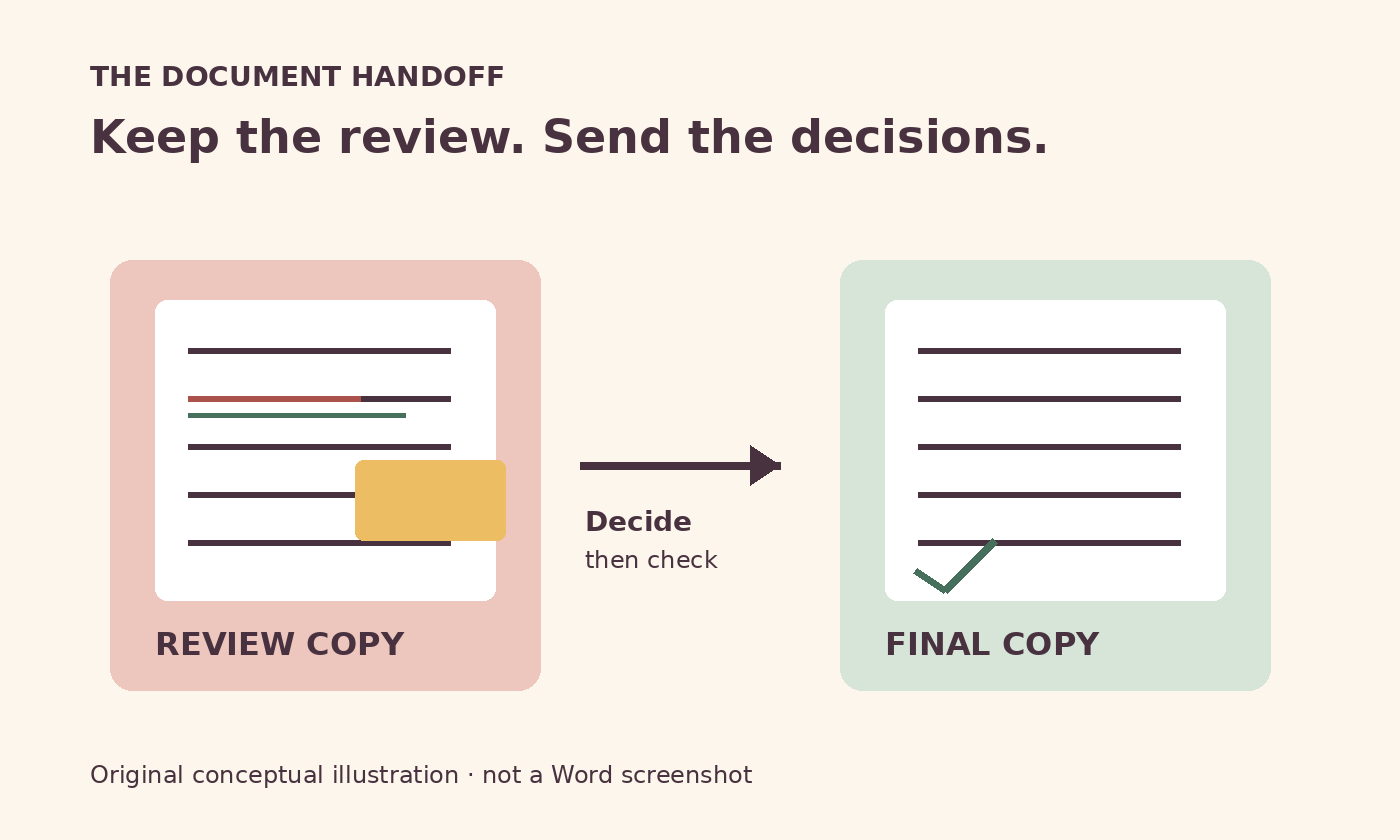
To remove tracked changes before sharing a Word document, accept or reject every outstanding change in a separate final copy, then delete comments that should not travel with it. Choosing No Markup only changes the view; it does not remove the review history. Keep your original review copy so you can revisit decisions without reconstructing the discussion. Microsoft makes this distinction explicit in its accept-or-reject guidance.
This checklist is for a busy professional handing off an ordinary, editable Word document—not someone trying to erase a required audit trail. If a colleague still needs to approve changes, send a clearly labelled review copy instead. For managed work files, follow your organisation’s retention and sharing rules. You do not need another writing tool or an AI upload to finish this job: you need an agreed final version, a preserved original, and a deliberate check of the actual file being sent.

1. Choose a review copy or a final copy
Ask one question before touching the controls: “Does this recipient need to see how we reached the wording, or only the agreed wording?” A review copy preserves proposed edits and discussion. A final copy contains the decisions you have actually approved. Neither is automatically the right choice.
For a fictional project update, the team might need Project-review.docx internally while a client receives Project-final.docx. These names are suggested labels, not a Word feature that sanitises anything. Record which version was approved and who is responsible for sending it. If approval is missing, pause rather than quietly accepting everything to meet a deadline.
You do not need to buy another app just to finish an approved Word document. If this task has prompted a wider software-buying decision, our older software-buying guide discusses purchasing discipline, not document clean-up. Treat its dated offers as historical; use the current subscription audit checklist for the separate keep-or-cancel decision.
2. Preserve an original before changing markup
Save a separate copy before accepting edits or removing comments. Open the proposed final copy and check its filename and location. Keep the review original in an appropriately restricted location, not next to the outgoing attachment where you might select it accidentally. For work documents, use approved storage rather than a personal account.
Microsoft’s Version History instructions apply to files stored in OneDrive or SharePoint in Microsoft 365. Do not assume a local file has that recovery route, or that your organisation retains every version indefinitely. A separate original is your practical starting point; check your actual recovery options before a destructive clean-up.
If you later realise you accepted the wrong wording, stop editing the outgoing copy and compare with the preserved review original. Do not rely on remembering every deleted sentence. If neither an original nor a usable prior version is available, ask the owner for another copy before continuing.
3. Remove tracked changes before sharing: decide each edit
Start at the beginning of the document. In desktop Word, use the Review tab, display All Markup, and check the Show Markup choices so reviewer or change-type filters are not concealing items. Microsoft’s Track Changes documentation distinguishes All Markup, No Markup and Original; a clean-looking view is not a clean file.
Select Accept or Reject for each proposed change and continue through the document. Accept keeps the proposed edit; reject declines it. Read the surrounding sentence after each decision, especially for amounts, dates, responsibilities and negations. Turning tracking off is a separate action: it does not resolve changes already in the file.
Here is a fictional decision exercise, not a test performed in Word:
- Original: “Send the draft on Monday.”
- Proposed change: replace “Monday” with “Wednesday”.
- If Wednesday is approved, accept that change. The intended final sentence is “Send the draft on Wednesday.”
- If Monday remains approved, reject that change. The intended sentence remains “Send the draft on Monday.”
- A comment asking “Has the manager approved this?” still needs attention separately.
Bulk acceptance is reasonable only when every proposed edit is genuinely approved. Read the command carefully: Accept All Changes Shown is not the same scope as Accept All Changes. Microsoft documents that shown-only commands can leave filtered changes untouched. Do not use a blanket rejection as a substitute for reviewing what you want to retain.
Windows, Mac and Word for the web have edition-specific layouts; Microsoft’s platform tabs describe the corresponding controls. If the file is read-only, approval is unclear, or tracking is password-locked, stop and contact its owner. Do not bypass protection or copy confidential content into a third-party cleaner.
4. Deal with comments separately
After deciding the text changes, open the comments view. In Microsoft 365 Word’s modern comments, resolving a thread hides it from the contextual view; List view includes active and resolved comments. Microsoft’s modern-comments guide also documents deletion through the thread’s More thread actions menu.
In that modern-comments interface, select Review → Show Comments ▼ → List to include resolved threads. Open each unwanted thread’s More thread actions (…) menu and use its deletion command. Review the remaining list rather than assuming resolving the thread removed it.
For a final copy that should contain no discussion, review the comments—including resolved threads—and delete the ones that must not be delivered. Keep necessary decisions in the agreed text or an authorised record first. Resolving a question is a workflow decision; deleting its thread from the outgoing file is a different action. Do not confuse either with accepting a text revision.
In the fictional example, confirm the approved deadline, ensure the sentence matches it, then remove the internal approval conversation from the final copy if policy permits. Keep the original discussion in the preserved review copy. If the recipient still needs to answer the question, the document is not ready for a final handoff.
5. Inspect the copy without promising perfect sanitisation
For desktop Word on Windows, Microsoft documents File → Info → Check for Issues → Inspect Document. Choose the relevant checks, inspect the results, and remove only categories you intend to remove. The Document Inspector guidance recommends working on a copy because removed information cannot always be restored.
Do not click every Remove All button without reading: headers, footers or watermarks may contain information the final document needs. Reinspect after removal and read the document again. This is an additional check, not a replacement for deciding the wording yourself.
This Windows menu path is not a promise that your Mac or browser edition has the same inspector. If you cannot complete a required inspection in your edition, arrange an approved Windows-desktop check or ask your document owner or IT team. Do not mark an unavailable check as passed.
Even the inspector has limits: Microsoft says its Hidden Text check does not detect text concealed by other methods, such as white text on white. Removing tracked changes is therefore not a guarantee that all confidential information, embedded content, metadata or remotely stored history has vanished. Sensitive or regulated files need your organisation’s approved process.
6. Reopen the exact outgoing file and use a handoff note
Save, close and reopen the final copy. Return to All Markup, review the comments list, and check that no outstanding revisions or unwanted threads remain. Read the actual final wording, plus tables, headers and footers. If anything is unexpected, stop and return to the preserved original rather than sending an uncertain file.
Select the exact attachment or approved final-copy link, not the old collaborative original. A tidy downloaded copy does not establish what someone can access through another shared link. Have the owner confirm permissions where needed. If you are also changing office suites, keep that separate: our file-specific Office-alternative trial checklist covers compatibility checks, not this approval decision.
Copy this handoff note and fill it in honestly:
Attached: [exact filename]. Purpose: [final wording / further review]. Text changes: [accepted or rejected after approval]. Comments: [removed from this copy / intentionally retained]. Additional inspection: [method and result / not performed]. Review original: [retained in approved location]. Remaining checks: [anything unresolved].
Your next step is small: make the separate copy first. Then resolve the text, remove unwanted discussion, inspect what you can, and reopen the file you will actually send. A precise handoff is more useful than calling a document “completely clean” without evidence.
Method and limits: Microsoft documentation checked on 19 October 2026. This is documentation-based guidance, not a hands-on Word test or certification of a reader’s file. The example and illustrations are fictional. Mrs. Technology prepared this guide; interface labels can vary by edition.

