If your morning routine needs three attempts, your Away setting turns off a light while someone is still home, or “goodnight” leaves you checking every room anyway, you do not need to become a programmer. You need a smaller routine and a clearer agreement about what it should do. That is especially useful when your attention is already split between work, applications, study and everything else a household asks of you.
This guide builds three modest Google Home routines: morning, away and goodnight. Start with a lamp you already control in the app, not a shopping list. We will separate private information from shared devices, explain what “everyone away” really depends on, and leave you with a test you can repeat. These are documentation-based recipes, not claims that we tested your equipment or measured reliability. If you are still deciding what deserves automation, our daily automation guide is a useful companion, rather than another prerequisite.
1. Choose Personal or Household before adding actions
The starter–condition–action model below applies to the new Household editor; Personal Routines use their separate starter-and-action workflow. A starter says when; a condition says whether; an action says what. For example, a chosen time starts an automation, “someone is home” restricts when it may run, and turning on a lamp is the action. Google’s supported automation behaviors explains these components. Multiple starters are alternatives: any one can start the automation. Multiple conditions can be configured as Any or All. Read that choice rather than assuming every extra condition makes the routine stricter.
Use a Personal Routine when the result belongs to you: your calendar, your morning information, your preferred audio. Use a Household automation for shared lights and shared arrival or departure behavior. Google’s Personal and Household routine guide says Household Routines cannot provide someone’s personal calendar results. A shared speaker is not a reason to put private information into a shared routine.
As checked on October 8, 2026, Google’s current automation editor guide describes a new Household editor with starters, optional conditions and actions. Personal Routines still use their own workflow. It also says creation and management require Admin access or Member access with Settings permission. If your screen differs, check the correct home, your permissions, and the applicable editor before concluding the feature is broken.
Most importantly, Google explicitly calls these automations convenience features, not safety- or security-critical systems. Keep life-safety alarms, essential equipment and your final door-security check outside these recipes. Our renter-friendly security checklist covers that separate responsibility.
2. Morning: start with a lamp, then add personal information
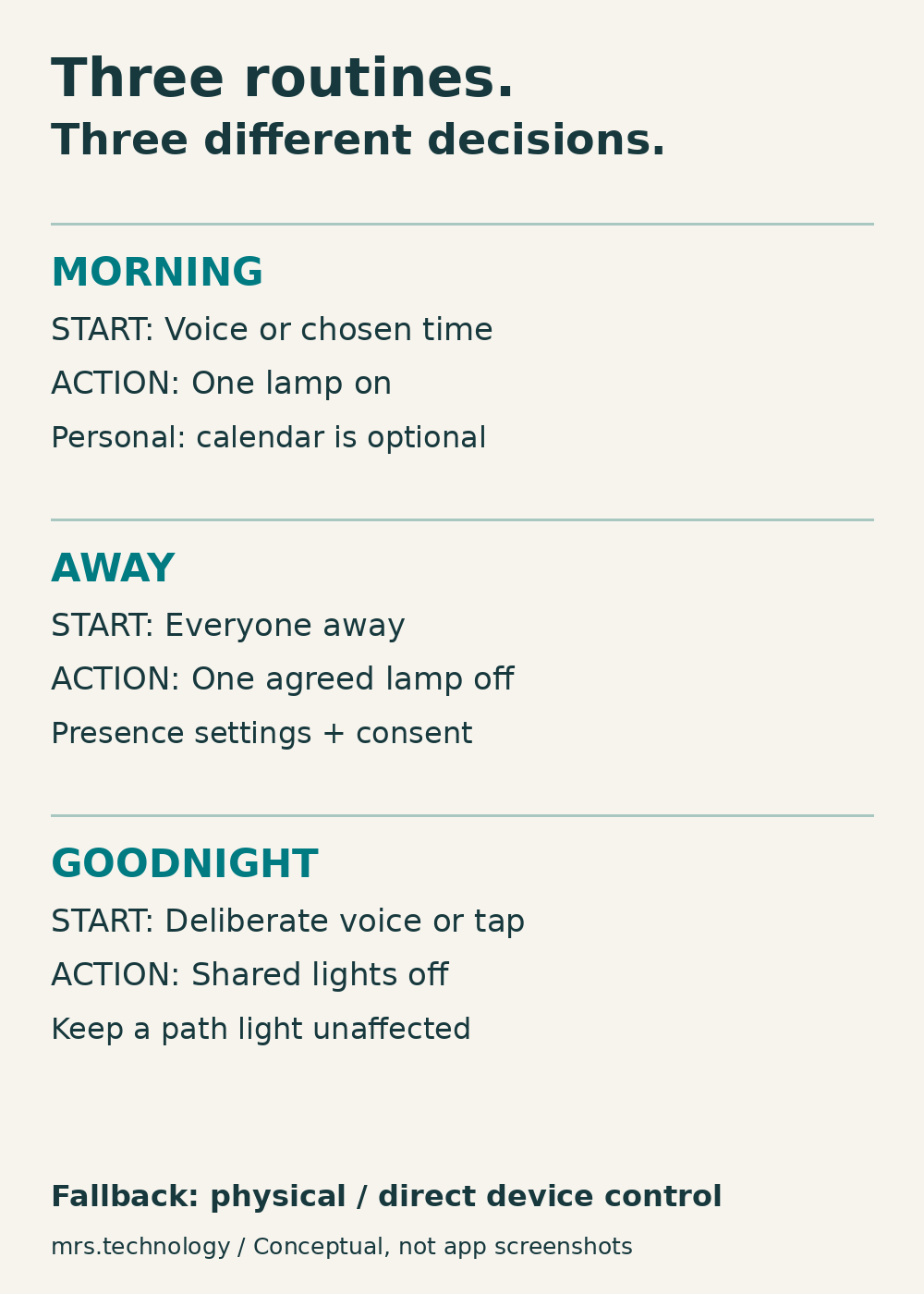
Write the outcome first: “When I choose to begin my morning, turn on the desk lamp.” That is enough for version one. If you share a bedroom or work shifts, a deliberate voice starter can be kinder than a fixed schedule. “Morning” does not have to mean the same clock time for everyone.
For a Personal Routine, Google’s instructions are Google Home → Automations → Add → Personal. Name it, choose a voice starter such as “good morning,” add the lamp action available for your device, and save. The official setup guide also documents time starters and alarm-dismissal starters. Choose one to begin with; an alarm-dismissal trigger is an option, not a requirement.
Test the lamp directly from its device tile before testing the routine. If you want dimming but the action picker only offers on/off, use on/off. Google warns that third-party compatibility can vary by individual control: a light may support voice switching without brightness or color changes. A missing control is not evidence that you need a more expensive phone or technical qualification.
Once the lamp behavior suits you, optionally add weather or calendar information. Personal results must be enabled for information such as calendar events, according to Google’s routine guide. Decide whether you want those details spoken where other people can hear them. For scheduled audio, select the playback device rather than leaving the destination ambiguous.
My recommendation is to add one action at a time and record what changed. That is a troubleshooting method, not a claim that a two-action routine has a measured reliability advantage. Keep the lamp’s ordinary control available. If your setup feels like an extra job, our guide to simplifying a complicated smart home can help you decide what to remove.
3. Away: everyone away is not the same as you leaving
The safest starter recipe here is narrow: “When everyone is away, turn off the agreed living-room lamp.” Do not include the router, refrigerator, medical equipment, heaters or any other load whose interruption could cause harm. Check what is plugged in before selecting a smart plug. The example is about a non-critical lamp, not remotely cutting household power.
Google’s presence-based automation guide describes Home behavior when someone arrives and Away behavior when everyone leaves. Phone-based sensing uses signals including GPS, cellular and Wi-Fi; eligible home devices can also contribute. Those inputs affect the home’s inferred status. A location signal is not a head count, and a device being “smart” does not mean it can contribute to presence sensing.
Discuss consent before configuring it. Someone should not have to share phone location just to avoid sitting in the dark. Google’s presence sensing and data guide gives the exact problem: if only your phone contributes and no other devices sense presence, your departure can trigger “everyone away” even while other household members remain home. If the household does not want the necessary sensing, use a deliberate shared control instead.
In the current documentation, presence settings are under your profile picture or initial → Home settings → Presence sensing. Review allowed phones and eligible device inputs. If opting into phone-based sensing, review both the Home app settings and the phone’s location permissions. Google’s guide specifies always-on location permission for that setup. Do not quietly change another person’s phone settings.
Then use Add → Automation in the current Household editor, name the automation and select the everyone-away presence starter and the lamp-off action. Google’s presence guide documents presence as either a starter or condition; our recipe uses it as the starter. Leave extra conditions out until you can explain why they are needed.
Test the action separately from the departure signal. With household agreement, manually changing Home/Away can check the device response; it does not prove automatic location detection works. Next observe a real, ordinary departure and check the activity record. If someone stays home, the agreed lamp should not unexpectedly go dark. For a broader review of data permissions, use our smart-home privacy guide.
4. Goodnight: make it a deliberate, reversible scene
Start with “When we deliberately say goodnight or press the routine’s Play control, turn off these shared-room lamps.” Use a Household automation for the shared scene. If the routine also needs your calendar or another personal result, keep that in a separate Personal Routine rather than trying to make one routine serve incompatible purposes.
Google’s supported behaviors reference includes voice starters and device on/off actions. Select the actual light controls offered for your devices, name the routine clearly, and save. For an initial manual test, leave optional conditions empty. The current editor guide says an automation without a starter can still be started manually when conditions are also empty.
Agree the lamp list with the people who use those rooms. Leave an unaffected path light if someone needs to move around after the scene runs. A person working late should not have to race an automatic bedtime schedule. This is household design advice, not a technical restriction imposed by Google.
Keep locks and security-system arming outside this starter recipe. Their presence in a platform’s action list is not a guarantee that they completed successfully, and Google’s convenience-only warning still applies. Check doors and essential safety arrangements yourself. Likewise, do not add a coffee machine or heater merely because a plug action is available.
Record the manual recovery: which switch or device tile restores each lamp? Try that recovery while everyone is awake. Our first-week setup timeline offers a sensible way to spread configuration work instead of changing the whole home in one evening.
5. Troubleshoot the trigger before rebuilding everything
Ask which of three things failed: the starter, a condition, or an action. For the Personal morning routine, check My Activity; for shared Away and goodnight automations, check the Home app’s Activity feed. Google’s automation troubleshooting guide recommends checking activity, confirming the routine is activated, and testing device actions directly. If the lamp does not respond from its tile, adding another starter will not repair that device connection.
If Away never triggers, review which phones and devices contribute to presence, location permissions, and whether someone is actually still home. If a routine runs unexpectedly, look for overlapping schedules or another automation changing the same device. Do not delete everything before you have captured the routine name, expected behavior, actual behavior and approximate time.
If morning audio is missing, check the chosen playback device, its volume and Do Not Disturb state. Google’s troubleshooting guide also notes that a “device you speak to” destination can behave differently when you press Play rather than speaking to that device. A successful lamp action does not establish that the audio route is configured correctly.
For a missing action, verify that the device belongs to the correct home and supports that particular routine behavior. Google’s troubleshooting guide also says a hub for Google Home is required to add Matter devices to automations; this does not mean every lamp needs a hub. Availability also varies by region and language. Use Google’s own guidance for the editor you have; do not adopt an online screenshot’s subscription requirement or menu label without checking it. Our monthly maintenance checklist is useful once the routines are established.
6. Your seven-step setup checklist
- Write one outcome. Choose a non-critical lamp and describe what should happen, without promising savings or perfect reliability.
- Agree who is affected. Check shared-room needs, late workers, guests, location consent and manual lighting access.
- Confirm direct control. Use the lamp’s Google Home tile and verify the exact action you intend to automate.
- Choose the routine type. Personal for private information; Household for shared device behavior. Confirm your editing permissions.
- Add one clear starter. Choose morning voice or time, everyone-away presence, or a deliberate goodnight command. Review optional conditions.
- Test action and trigger separately. Run the scene manually where appropriate, then observe the intended real starter and record the result.
- Keep a fallback and review. Restore the lamp using ordinary controls, check activity after failures, and remove actions the household does not want.
This is a recommended workflow built around Google’s documented controls. It is not a certification, a benchmark or a promise that every device exposes the same options. Completing just the morning lamp routine is a valid stopping point.
7. Frequently asked questions
Do I need a Google Home Premium subscription?
These recipes do not use familiar-face detection or AI-generated automation creation. Google’s current editor documentation identifies some behaviors, such as familiar-face starters, as requiring Premium. Check the specific behavior offered in your app; do not buy a subscription simply to troubleshoot an ordinary lamp routine.
Why do the lights turn off when someone is still home?
Review presence inputs first. Google’s presence guide describes this exact outcome when only one person’s phone contributes and no other devices sense the remaining people. Either agree suitable sensing with the household or use deliberate control. Location consent should not be a condition for keeping a room lit.
Can a Household automation read my calendar?
No. Google’s routine guide says Household Routines cannot provide personal calendar events or reminders. Use a Personal Routine, enable personal results if wanted, and consider who can hear the speaker.
Will these routines work if the internet goes down?
Do not assume so. Google says automations can depend on working internet, Wi-Fi and both Google and third-party services. Keep a physical switch or another control verified to work without internet; do not assume the Google Home tile remains available during an outage. Do not use these routines for safety-critical tasks.
Do I need to write code?
No code is required for the app-based recipes described here. Google documents a separate script editor for more advanced logic, but you do not need to begin there. If an action is missing, check compatibility and permissions before seeking a scripting workaround.
8. Your next step: write one routine contract
Copy this into a note: “When ___ happens, change ___, but leave ___ alone. The people affected have agreed. If it fails, I will use ___ to restore control.” Fill it in for one lamp, create the routine and test it before adding anything else.
For morning, the blank might be your voice command. For Away, it must describe the household’s agreed presence rule, not just your departure. For goodnight, it should preserve anyone still using the room. You do not need a perfectly automated home. You need one helpful action that does not become another thing you have to manage.